Smart Transfer: Copy My Data
- 3.4
- Rating
- 500.00K
- Installs
- Free
- Price
 Analysis by App-foxy
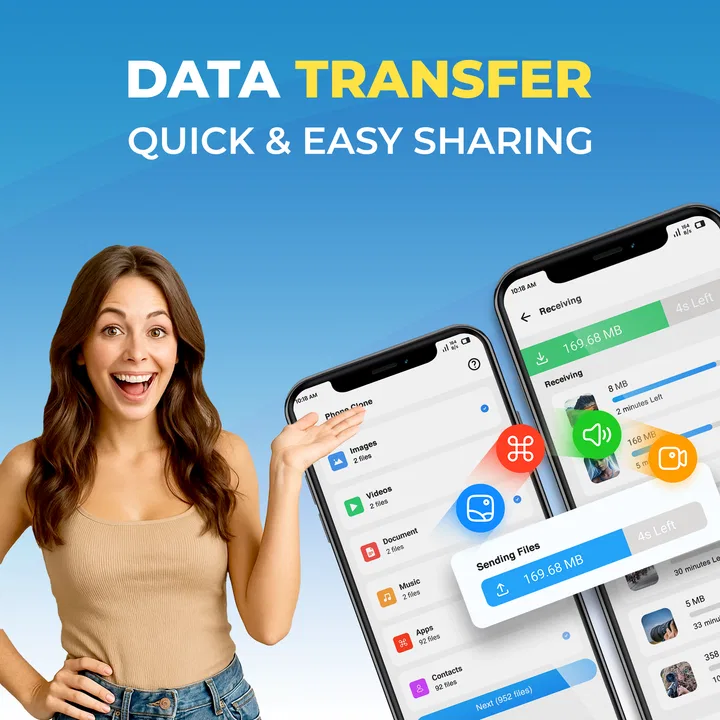
Moving to a new phone is usually less exciting than it should be. The device may be faster and cleaner, but getting contacts, photos, videos, messages, and other personal material across can turn the first hour into a chore. Smart Transfer: Copy My Data is a free Tools app from Tools for Daily Use that aims to make that handover more direct. I tested it with that practical job in mind rather than treating it as a general backup service, and my impression is that it is most useful when both phones are available and you want a guided transfer instead of manually rebuilding everything.
The app is listed for Everyone and works on Android devices running version 8.0 or later. That broad compatibility makes it relevant for people keeping an older phone as the source device, although the experience still depends heavily on the two devices involved. Its current version is 2.9.7, and the project has been available since May 26, 2025. With over 500 thousand installs, it is not an obscure experiment, but the average rating of 3.4 shows that the experience is not equally smooth for everyone.
What the transfer experience feels like
I’d treat the first transfer as a small, deliberate test rather than a race to copy everything. Starting with a few contacts or a modest set of photos gives you a clear way to check that the two phones are communicating and that the destination is receiving usable files. Once that first result looks right, it’s easier to decide what to move next and how much space to reserve.
You May Also Like

 Google Keep - Notes and lists
Google Keep’s Quiet Growth Shows the Appeal of Simpler Notes
As mobile work gets busier, Google Keep keeps winning a simple contest: capture a thought quickly, find it later, and get on with the day.

 Blood Strike: 2.5 Anniversary
Blood Strike’s Loadouts Turn Every Drop Into a Tactical Gamble
A close look at Blood Strike’s custom loadouts: how fast access to signature weapons reshapes its battle royale rhythm, rewards preparation, and narrows the gap between fights.

 Pandora - Music & Podcasts
Pandora’s Music Is Easy to Start, but Harder to Recover
Pandora’s strength is its low-effort path from a seed to a station. Its weak spot is how much confidence it asks you to place in connection, setup, and quiet recovery.

 8 Ball Pool
 Is Built on Rivalries, Rematches, and Routine
A close look at the rivalries, rematches, shared routines, and unanswered safety questions that turn a quick pool match into a persistent mobile community.

 Samsung Music
’s Quiet Strength Is Playing What You Already Own
Its reach comes less from spectacle than from dependable access to a personal library. That simplicity is both the app’s strongest retention engine and its ceiling.

 AccuWeather: Weather Radar
AccuWeather Review: A Quick, Clear Forecast for Everyday Decisions
For everyday plans, the best forecast is the one you can understand quickly. AccuWeather makes rain timing, radar, and local conditions easy to act on, with a few trade-offs.
More From Our News Desk



Speed depends more on the situation than the name suggests
The first thing I would tell a friend is not to judge this app by the word “smart.” It can simplify the process of moving data, but it cannot make a large photo library behave like a small contact list. A transfer with a few essentials should feel manageable; a phone packed with long videos and years of images naturally creates a much heavier job. The app’s value is in organizing the handoff, not in removing the time required to read data from one phone and write it onto another.
Before starting, I would charge both devices and clear enough storage on the receiving phone. That preparation matters more than repeatedly restarting the transfer. I would also close unrelated apps, especially anything that might compete for memory or network activity. This is a simple but useful distinction: the quickest transfer is usually the one prepared carefully, not necessarily the one launched immediately after installing the tool.
A practical workflow is to begin with the items you genuinely need on day one. Contacts, selected photos, and essential videos are more sensible first targets than attempting to move every old file at once. If the app presents categories during setup, reviewing them rather than accepting everything blindly can reduce both transfer time and clutter on the new phone. This selective approach is one of the better ways to use a phone-cloning tool, because a new device should not automatically inherit years of forgotten downloads.
I would not use the app as a reason to erase the old phone quickly. A completed-looking transfer is not the same as a complete replacement for the source device. Afterward, I would open several contacts, browse recent and older photos, and check a few videos from different points in the library. That small sample is more useful than assuming that a progress screen tells the whole story.
When the workload becomes heavy
The demanding moment is not normally opening the app; it is asking it to handle a large, mixed collection while both phones are busy. A transfer involving many media files can keep the devices active for a while, and the receiving phone needs enough free space to accept the result. Older hardware may also feel less responsive during the process. I would avoid treating the source phone as a normal daily device until the transfer finishes.
There is a useful trade-off between convenience and control here. Moving everything in one session sounds easier, but a staged transfer gives you more chances to notice a problem early. I prefer starting with contacts and a small group of representative photos, checking the result, and then continuing with larger media groups. If something goes wrong, that method makes the affected batch easier to identify than a single enormous operation.
Large video collections deserve special attention. They consume storage quickly and are more likely to expose a shortage on the destination phone. If your new device has less capacity than the old one, copying every file may be the wrong goal. In that situation, I would use Smart Transfer: Copy My Data for the material I want immediately, then archive or sort the rest separately. A phone clone should not be confused with a promise that two devices have identical storage limits.
Resource use is also worth considering. I would keep both phones connected to power when the job is substantial, but I would not assume that charging solves every issue. Heat, background activity, and a crowded destination can still make the process less comfortable. If either device becomes unusually warm or the transfer appears stuck, pausing and checking storage, connection state, and screen status is more sensible than repeatedly tapping the same button.
Stability and what to do when a transfer falters
The rating suggests a mixed ownership experience, and that matches the reality of transfer tools: success depends on the exact phone pair, operating-system behavior, connection conditions, and the size of the job. I found the app easier to recommend for a planned move between two nearby phones than for an urgent rescue of irreplaceable files. Its central idea is straightforward, but straightforward does not mean immune to interruptions.
My recovery routine would be deliberately cautious. I would not delete anything from the old phone after a partial attempt. Instead, I would note what arrived, restart with a smaller category or batch, and verify the destination before moving on. If a very large transfer repeatedly fails, splitting it by content type is a better test than starting the same all-at-once process again.
This is also where the app’s role needs to be understood correctly. It is a transfer utility, not a substitute for keeping an independent copy of important documents or memories. For family photos, work files, or anything that would be painful to lose, I would maintain another backup before beginning. The app can help move data between phones, but one transfer session should not be the only safety net.
Another recovery tip is to remove avoidable variables. Put the phones close together, keep them awake if the app requires active interaction, and avoid switching constantly between other applications. If the destination phone is nearly full, free space before retrying rather than waiting for the transfer to fail near the end. These steps do not add features, but they make the app’s main task less fragile.
Older phones, newer phones, and practical limits
The minimum requirement of Android 8.0 is helpful for people upgrading from a device that is no longer new. That does not mean every supported phone will perform the same way. An older source handset may read files more slowly, while a newer destination may have different storage behavior or a different way of handling incoming content. The app can be compatible with both without making the pair equally convenient.
I would also check the destination before installing anything else. If the new phone has limited free space, transferring selected categories is more realistic than attempting a complete mirror. This is especially important for users who have accumulated years of camera footage. The most useful question is not “Can I copy everything?” but “What do I need available on the new phone today, and what can remain archived?”
People moving between different phone brands should approach the app with sensible expectations. A data-transfer tool may move personal content, but it should not be expected to recreate every setting, account session, app login, or manufacturer-specific feature exactly as before. I would still plan to sign in again, review system settings, and reinstall applications through the normal store process. That extra work is not a failure of this particular app; it is a limitation of treating two different phones as if they were interchangeable storage boxes.
Privacy-conscious users should be equally deliberate. I would review the app’s requested access on the device and only proceed if the transfer scope feels appropriate. Since the purpose is to reach personal data, some level of access is inherent to the task, but that does not mean you should rush through every prompt. A careful user can choose a smaller transfer, inspect the result, and keep the old phone intact until satisfied.
How it compares with the usual alternatives
The main alternative is manual setup: sync contacts through an account, restore photos from a cloud service, reinstall applications, and copy individual files. That route gives you more control and can be safer for a carefully curated move, but it is slower and more fragmented. Smart Transfer: Copy My Data is appealing when you want one place to coordinate the phone-to-phone portion rather than jumping among several services.
Cloud backup is usually better when the old phone is unavailable, when the devices are in different locations, or when you want an ongoing recovery plan. Smart Transfer is more suitable when both phones are in front of you and the immediate goal is migration. I would not choose it as my only backup method, because a direct transfer does not provide the same long-term separation as an independent copy stored elsewhere.
Manufacturer migration tools can be a better choice when you are staying within one brand and want deeper handling of that brand’s settings or applications. On the other hand, a general-purpose tool may feel less tied to one device family. The right choice depends on whether your priority is broad practicality or the most complete brand-specific setup. For a mixed or uncomplicated move, this app is worth considering; for a highly customized phone with many manufacturer features, I would investigate the phone maker’s own method first.
There is also a cost question. The app is free to download, but in-app purchases range from $9.99 to $79.99 per item. That makes it important to inspect what is available in the version you use before relying on it for a major move. I would not begin a time-sensitive migration assuming every useful capability is included at no cost. If the basic workflow handles your selected data, the free entry point is attractive; if your move depends on paid functions, compare that expense with cloud storage or the manufacturer’s transfer option.
Who will get the most from it
I see the strongest fit for someone who has both phones, wants a guided process, and would rather select personal data in one transfer-oriented app than manage several separate tools. It can also suit a family member who is uncomfortable with manual file management, provided another person helps check storage and verify the result. The Everyone age rating makes it approachable in audience terms, but a little supervision is still wise when the data is important.
A realistic example would be replacing an aging Android phone before a trip. I would install the tool on the old and new devices, prepare both with power and free space, move contacts first, and then transfer the most recent camera folders. After checking those files on the new phone, I would continue with older photos only if the destination had room. The old phone would stay untouched until I had tested calls, contacts, photos, and any files I needed while traveling.
I would skip this app if you only have one phone available, if your main goal is a permanent backup, or if the destination has dramatically less storage than the source. I would also be cautious if you need a perfect recreation of app data and system settings. In those cases, cloud restoration, a computer-based archive, or a manufacturer-specific migration utility may be a better match.
My performance verdict
Smart Transfer: Copy My Data is a practical transfer assistant rather than a magic clone button. Its strengths are the focused purpose, free starting point, support for Android 8.0 and later, and a workflow that can be easier than collecting contacts, media, and files through separate methods. The large install base shows that many people are willing to try this kind of solution, while the middling rating is a useful reminder to prepare carefully and verify the result.
My recommendation is conditional but positive: use it for a planned phone move, transfer in sensible batches, protect the original data, and treat storage and device differences as part of the job. I would not choose it as a replacement for an independent backup or as a guarantee that every setting will follow you. For the right scenario, its real advantage is reducing the number of moving parts during a direct phone migration. With realistic speed expectations and a cautious recovery plan, it can make an otherwise tedious upgrade noticeably easier.
FAQs for Smart Transfer: Copy My Data
01What is Smart Transfer: Copy My Data used for?
Smart Transfer: Copy My Data is designed to help users move personal content from one smartphone to another. Depending on the devices and permissions involved, it can transfer items such as contacts, photos, videos, calendars, music, documents, and other selected files. It is especially useful when setting up a new phone and wanting a simpler alternative to moving data manually.
02Does Smart Transfer: Copy My Data work between Android and iPhone?
The app may support transfers between different mobile platforms, but compatibility can vary according to the operating systems, device models, and the type of content being moved. Some data, such as contacts and media files, is generally easier to transfer than app data, messages, or platform-specific content. Check the app’s current compatibility information before starting a cross-platform migration.
03Is Smart Transfer: Copy My Data safe to use for personal files?
The application requires access to the data you choose to transfer, including contacts, photos, videos, files, or calendars. Before approving permissions, review what access is requested and only enable features you actually need. For added safety, use a trusted Wi-Fi connection, keep both phones nearby, and avoid deleting information from the old device until you confirm that the transfer finished correctly.
04Does Smart Transfer: Copy My Data require internet access or mobile data?
Transfer requirements depend on the specific feature and device combination. In many cases, the phones communicate through a local wireless connection, so an active internet connection may not be necessary, although Wi-Fi access can still be required to establish the connection or download the app. To avoid unexpected charges, disable mobile data during the process if your plan has limited data.
05What should I do if the transfer stops or some files are missing?
First, make sure both devices have sufficient battery, remain close together, and use compatible versions of the application. Check that the required permissions are enabled and that the destination phone has enough storage space. Restarting the app and reconnecting the devices can help. If only certain files are missing, verify whether their format or location is supported and repeat that category separately.
Pros
- Transfers contacts
- photos
- videos
- and calendars between phones
- Simple interface makes the migration process easy for beginners
- Works across Android and iOS devices
- Wireless transfer avoids cables
- computers
- and cloud storage
- Useful when switching phones or setting up a replacement device
Cons
- Transfer speed depends heavily on Wi‑Fi quality and network congestion
- Some features or transfers may require in-app purchases
- Large photo and video libraries can take considerable time
- May not copy app data
- messages
- or device settings completely
- Both devices usually need to remain nearby and connected during transfer

Smart Transfer: Copy My Data
Gallery